
Steam Deck: How To Run Sega Master System Games
Mastering Sega Master System Emulation on Your Steam Deck with EmuDeck
The Sega Master System, a classic 8-bit console, boasts a library of fantastic games, many exclusive or with unique versions compared to its competitors. This guide details how to install and optimize Sega Master System emulation on your Steam Deck using EmuDeck, ensuring a smooth and enjoyable retro gaming experience.
Before You Begin:
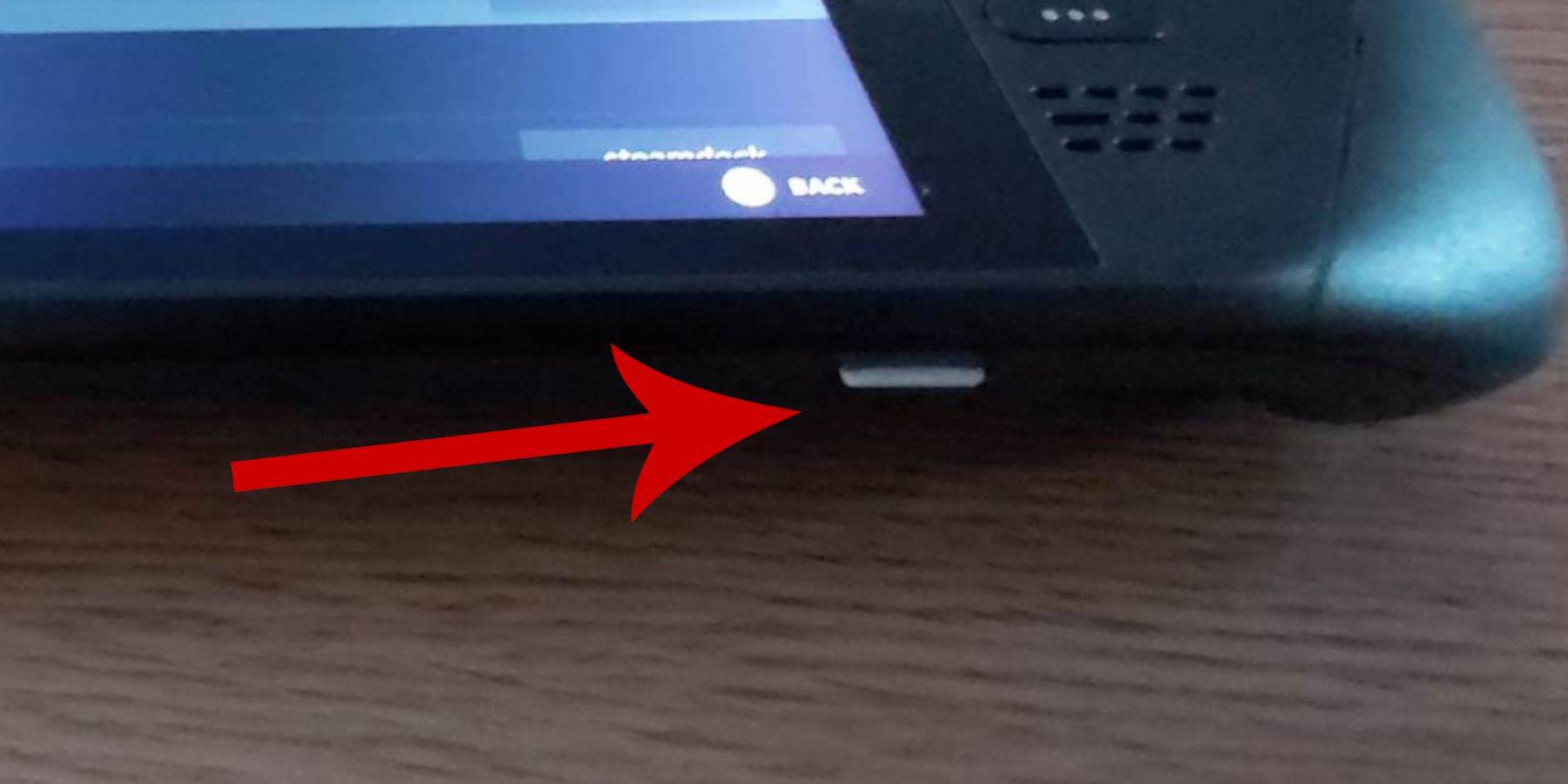
- Power Up: Ensure your Steam Deck is fully charged or connected to power.
- Storage: A high-speed microSD card (recommended) or external HDD is needed. Note that an external HDD reduces portability.
- Peripherals: A keyboard and mouse are highly recommended for easier navigation during setup. If unavailable, use the on-screen keyboard (Steam + X buttons) and trackpads.
Enable Developer Mode:
Prior to emulator installation, Developer Mode must be enabled:
- Open the Steam menu.
- Go to System > System Settings.
- Enable Developer Mode.
- Access the Developer menu (bottom of the left-hand menu).
- Under Miscellaneous, enable CEF Remote Debugging. Remember to check this after updates.
- Restart your Steam Deck.
Installing EmuDeck in Desktop Mode:
- Switch to Desktop Mode (Power menu).
- Download EmuDeck via a web browser (Chrome or Firefox recommended). Choose the correct SteamOS version.
- Run the installer, selecting "Custom Install."
- Select your SD card (rename it "Primary" for easier identification).
- Choose your desired emulators (at least RetroArch for Sega Master System). Enable Steam ROM Manager for library integration. Consider enabling "Configure CRT Shader for Classic 3D Games" for a retro aesthetic.
Transferring ROMs:
- Open Dolphin File Manager.
- Navigate to Removable Devices > Primary > Emulation > ROMS > mastersystem.
- Transfer your Sega Master System ROMs (
.smsfiles).
Adding Games to Your Steam Library:
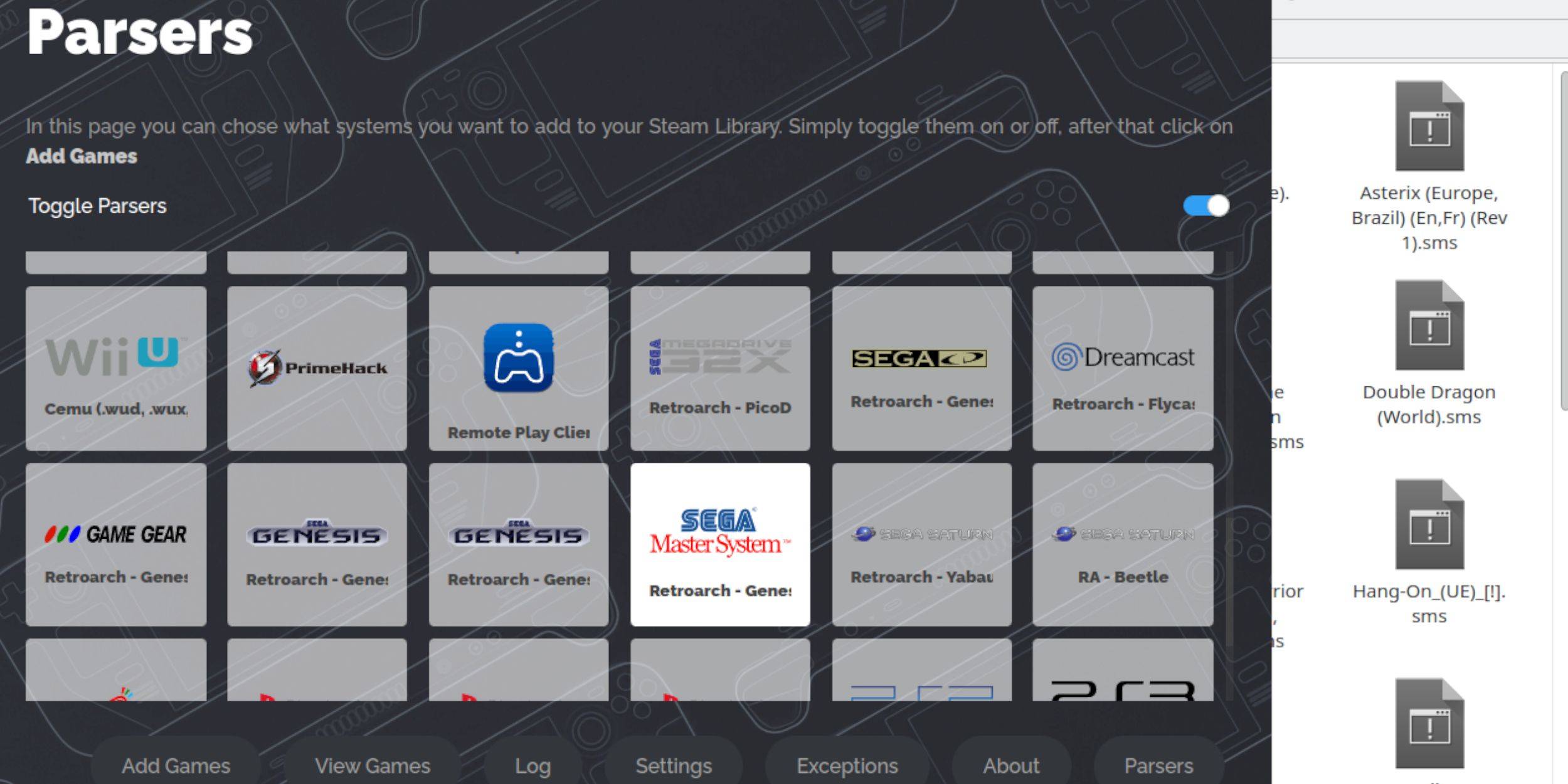
- Open EmuDeck in Desktop Mode.
- Launch Steam ROM Manager.
- Disable Parsers, select Sega Master System, and click "Add Games."
- Click "Parse" and "Save to Steam" after verifying game and artwork display.
Fixing or Uploading Missing Artwork:
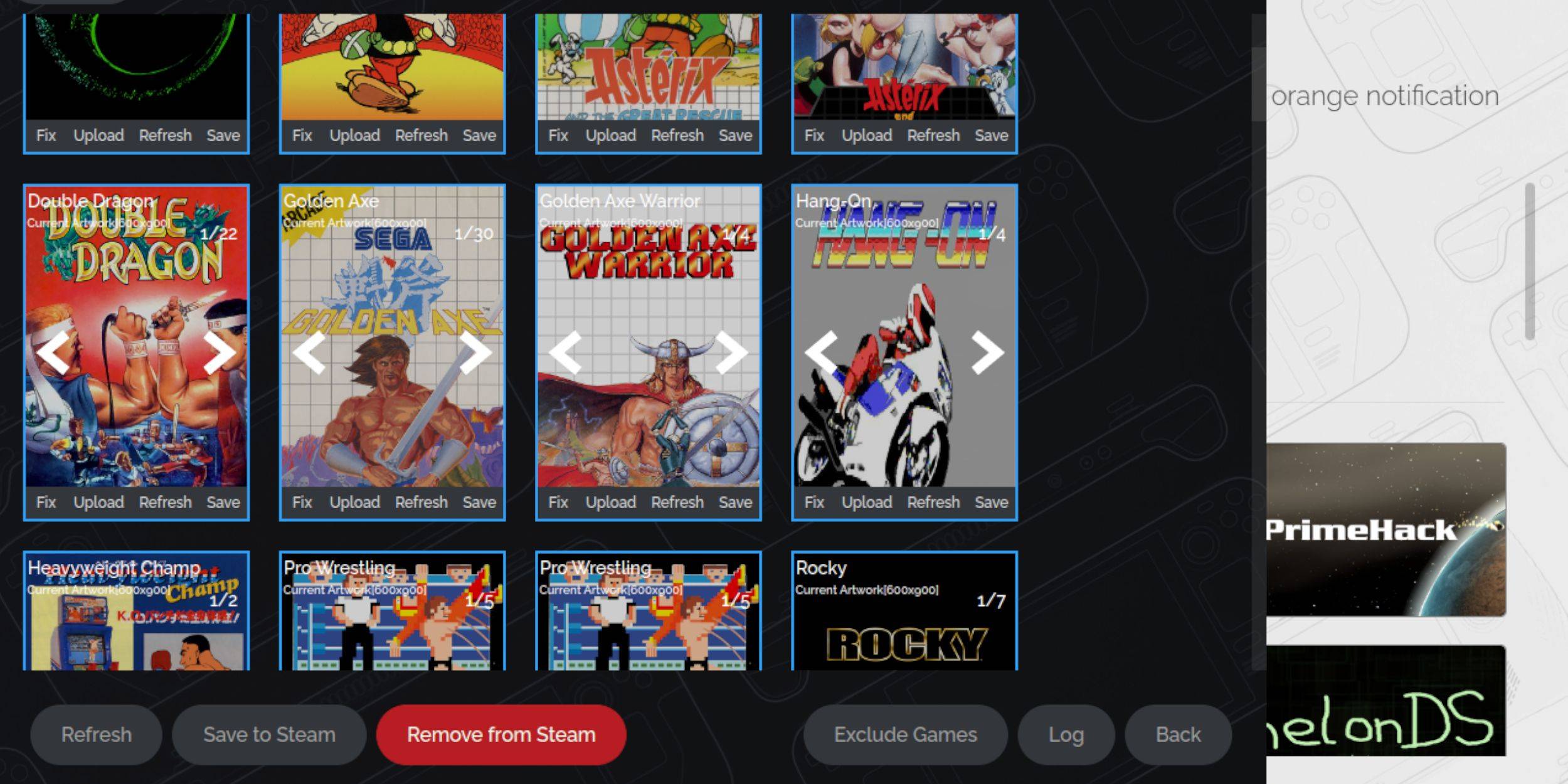
- Fixing: Use the "Fix" option in Steam ROM Manager to automatically find artwork.
- Uploading: Manually download artwork, save it to the Steam Deck's Pictures folder, and use the "Upload" option in Steam ROM Manager.
Playing Your Games:

- Switch to Gaming Mode.
- Open your Steam Library.
- Navigate to your Sega Master System collection.
- Launch your chosen game.
Performance Enhancements:
For smoother gameplay, adjust settings within the game's Quick Access Menu (QAM):
- Enable "Use game profile."
- Set Frame Limit to 60 FPS.
- Enable Half Rate Shading.
Installing Decky Loader and Power Tools:
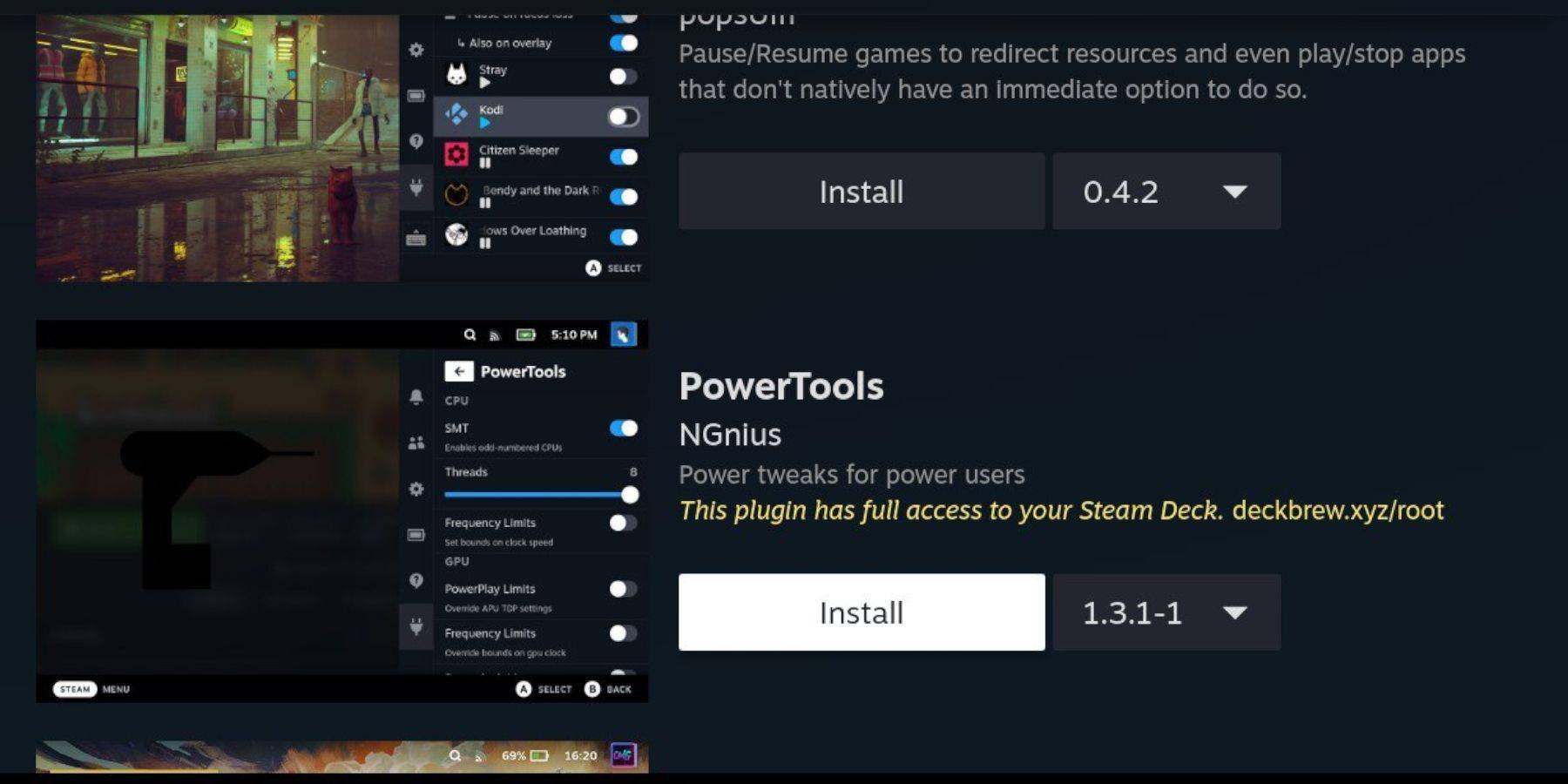
EmuDeck recommends Decky Loader and Power Tools for enhanced performance. Install them from their respective GitHub pages. In Power Tools, disable SMTs, set Threads to 4, enable Manual GPU Clock Control, and increase GPU Clock Frequency to 1200. Save per-game profiles.
Fixing Decky Loader After Updates:
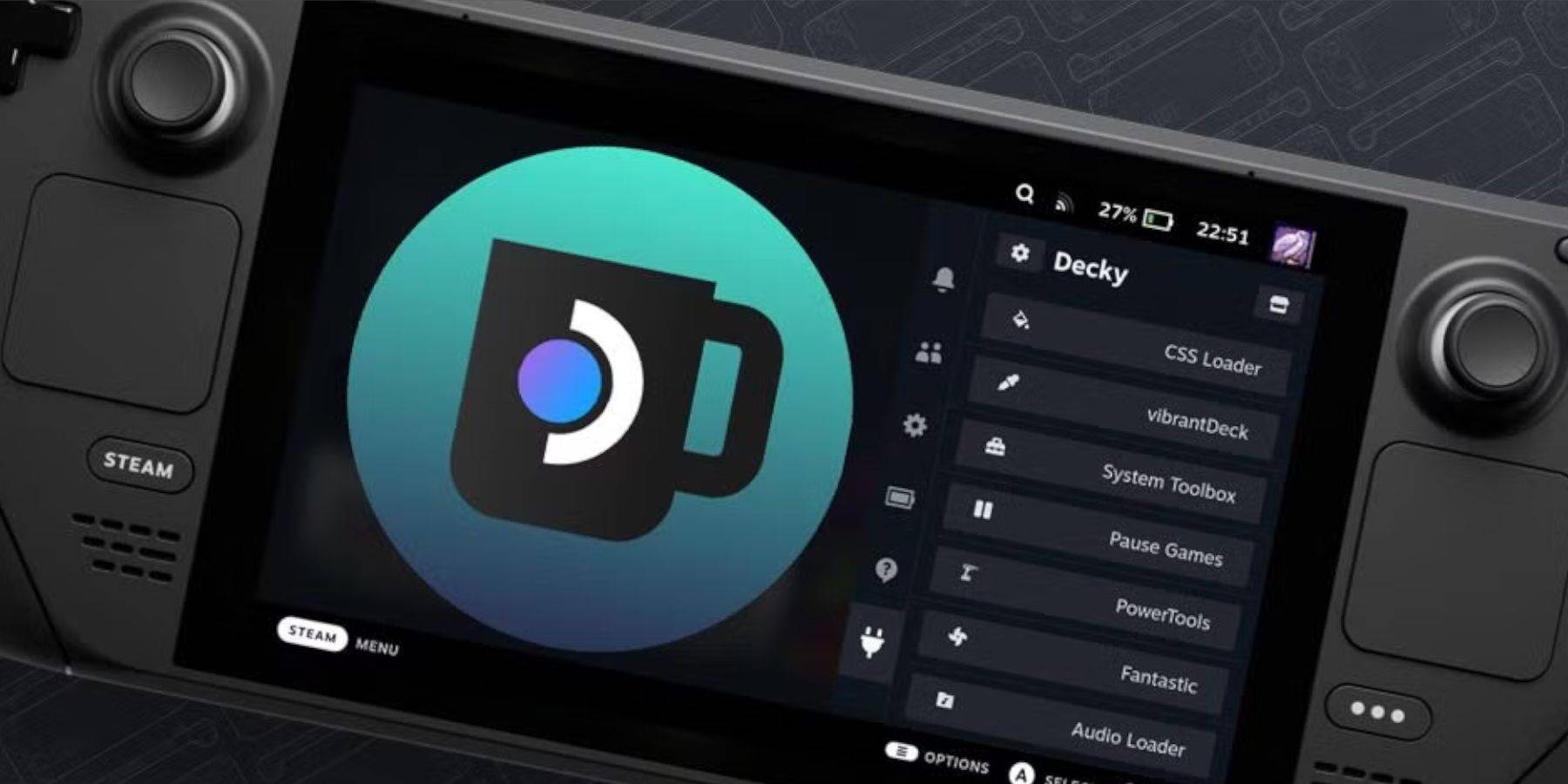
Steam Deck updates may require reinstalling Decky Loader. Download the latest version from GitHub and select "Execute," entering your pseudo password (create one if needed). Restart your Steam Deck.











-
1

Top Streaming Platforms for Live Sports in 2025
Jun 18,2025
-
2

GTA 6 Set for Fall 2025 Release, CEO Confirms
Apr 03,2025
-
3

Roblox: CrossBlox Codes (January 2025)
Mar 04,2025
-
4

First ALGS in Asia Emerges in Japan
Jan 19,2025
-
5
![Roblox Forsaken Characters Tier List [UPDATED] (2025)](https://img.jdzca.com/uploads/18/17380116246797f3e8a8a39.jpg)
Roblox Forsaken Characters Tier List [UPDATED] (2025)
Mar 05,2025
-
6
Introducing the Ultimate Guide to Seamless Character Swapping in Dynasty Warriors: Origins
Feb 25,2025
-
7
Gwent: Top 5 Witcher Decks (2025 Update)
Mar 13,2025
-
8
Max Hunter Rank in Monster Hunter Wilds: Tips to Increase
Apr 04,2025
-
9
Cute mobs in Minecraft: pink pigs and why they are needed
Mar 06,2025
-
10
Capcom Spotlight Feb 2025 Showcases Monster Hunter Wilds, Onimusha and More
Apr 01,2025
-
Download

Portrait Sketch
Photography / 37.12M
Update: Dec 17,2024
-
Download

Friendship with Benefits
Casual / 150.32M
Update: Dec 13,2024
-
Download
F.I.L.F. 2
Casual / 352.80M
Update: Dec 20,2024
-
4
[NSFW 18+] Sissy Trainer
-
5
Pocket Touch Simulation! for
-
6
슬롯 마카오 카지노 - 정말 재미나는 리얼 슬롯머신
-
7
Chubby Story [v1.4.2] (Localizations)
-
8
Life with a College Girl
-
9
Shuffles by Pinterest
-
10
Hunter Akuna